UpTrajectory Review
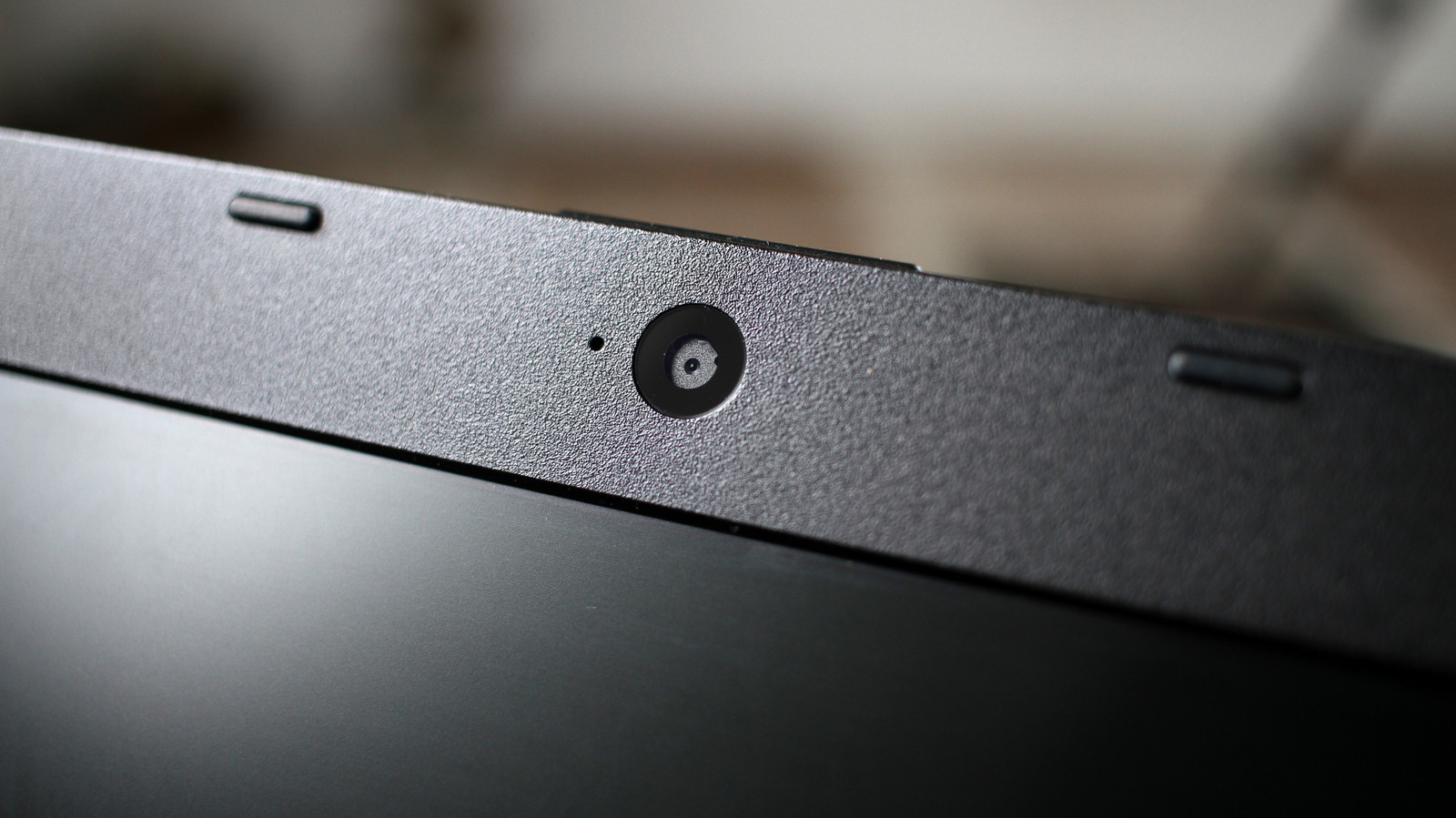
Engadget's guide tackles a problem every small-business owner knows too well: the grainy, dim, unflattering image that passes for video on most built-in laptop cameras. The piece acknowledges upfront that laptop webcams are rarely impressive hardware, then pivots to what you can actually do about it. While the available excerpt is brief, the headline and framing suggest a practical walkthrough of software tweaks, positioning tricks, and possibly external hardware alternatives for anyone who spends their days on client-facing video calls.
For a small-business operator, this is not a cosmetic concern. Client calls are often the first impression you make, and a washed-out, poorly lit video feed reads as unprofessional before you say a word. If you are a consultant, freelancer, or service provider pitching work over Zoom or Teams, your webcam quality is part of your brand. The good news is that meaningful improvement usually costs little or nothing, which matters when every dollar of overhead counts.
What is genuinely useful about this kind of guidance is that it pushes back against the assumption that you need to spend money to look better on camera. The most common culprits are bad lighting, awkward camera angles, and cluttered backgrounds, all of which are fixable with a desk lamp, a stack of books, and thirty seconds of tidying. We would argue that many operators overinvest in external webcams when repositioning their existing setup and paying attention to light direction would solve most of the problem for free.
That said, there is a real ceiling to what software and positioning can fix. If your laptop is more than a few years old, its sensor may simply be too small and too noisy to deliver a clean image regardless of lighting. In that case, an external webcam or even a repurposed smartphone on a cheap mount can be a worthwhile investment, particularly if you are doing sales demos, interviews, or recorded content where production quality directly affects credibility. The tradeoff is desk clutter and one more cable to manage.
Our advice: before buying anything, spend one afternoon testing your current setup. Record a short clip in your usual workspace at the time of day you typically take calls, then review it critically. If the problem is lighting or angle, fix that first. If the image is still muddy and artifact-heavy, then consider an external camera. Either way, treating your video presence as a business asset rather than an afterthought is a small habit that compounds over hundreds of client interactions.
Takeaway: Audit your webcam setup with a test recording before spending money; lighting and positioning fixes are usually free and solve most quality problems.
Excerpt from the original — Engadget
Your laptop's webcam is not usually an impressive piece of hardware, but you can help make up for its shortcomings.